
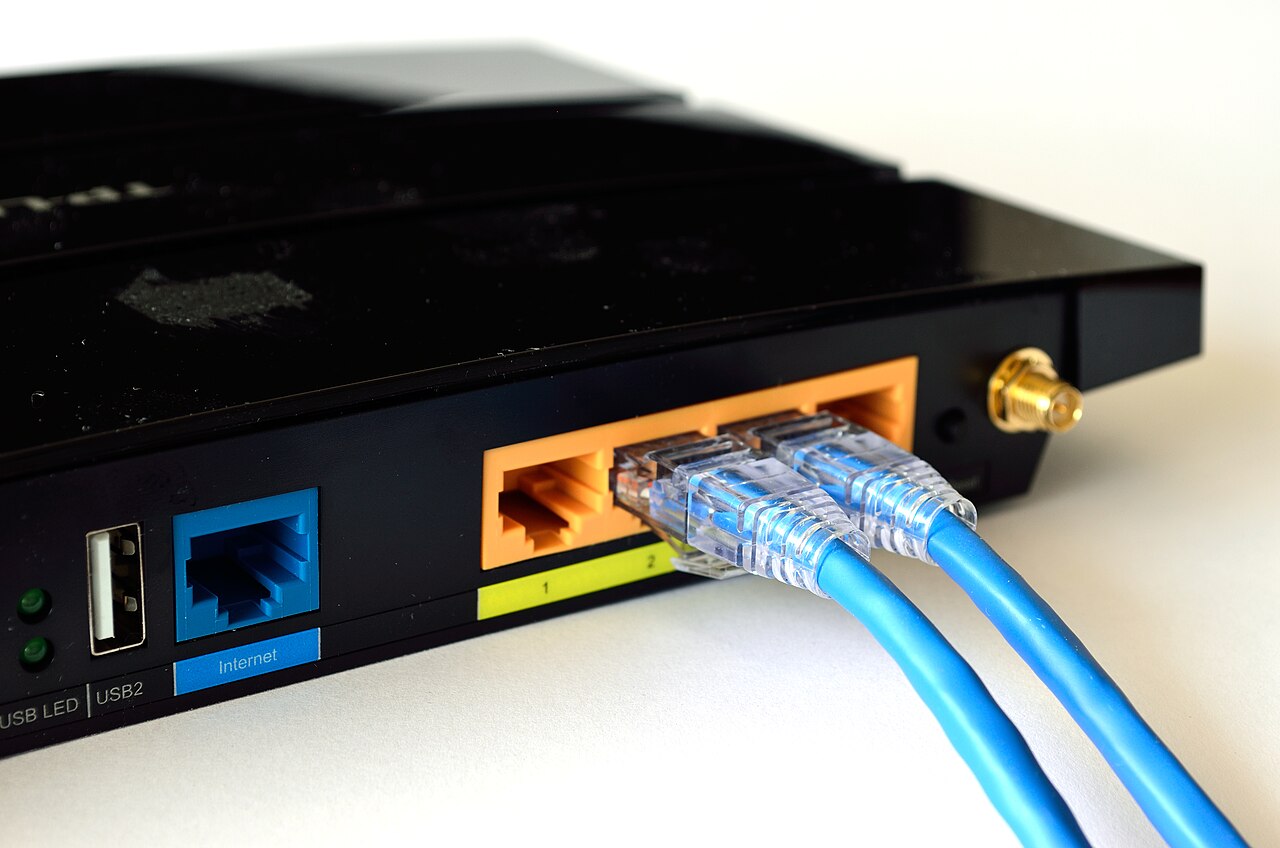
Router-level controls apply your rules to every device in the house at once. Here is how to set them up for school hours, evenings and overnight, plus the device settings that fill the gaps.
Quick takeaways
- Routers have two separate passwords: the Wi-Fi network password for connecting devices and the admin password that opens the settings.
- Set up profiles so each child’s devices share one set of rules, and disable the private MAC address setting on kids’ devices so the router always recognizes them.
- Router controls cannot see inside apps, set app time limits or follow a phone onto mobile data, so built-in device controls are a needed second layer.
- Change the default admin password, use WPA2 or WPA3 encryption, turn off remote management and keep the router’s software updated.
- Test every rule from your child’s device, and talk through the rules with your kids so controls and conversations work together.
When school happens at the kitchen table, your home Wi-Fi network becomes part of the classroom. The same connection that delivers a morning math lesson also delivers games, videos and everything else, at any hour. Router-level parental controls let you set rules once and apply them to every device that touches your network, which matters in a house where kids rotate between a laptop, a tablet and a borrowed phone. This walkthrough explains how to set those rules for school hours and free time, and where to add a second layer on the devices themselves.
Start With Your Goals: School Hours vs. Free Time
Before you log in to anything, decide what you actually want the controls to do. Most families with online learners want three different modes:
- During school hours. School platforms and research sites reachable, games and streaming off, and social media off.
- After school. Broader access with a daily time limit.
- Overnight. Little or no internet access on the kids’ devices at all.
Write your schedule down, including the times school starts and ends each day. A written plan keeps you from inventing rules on the fly inside a settings menu, and it gives you something concrete to share with your kids later. If you are still shaping the daily schedule itself, our guide to building a daily routine for online school pairs well with the downtime windows you will create below, and balancing screen time when school is online can help you decide what “enough” looks like after the last class ends.
Also decide who the rules cover. A high schooler doing dual enrollment coursework needs different access than a second grader with a short list of learning sites. Most router software handles this with separate profiles, which the next steps set up.
Before You Start: Gather Three Things
- Your router’s admin login. Routers have two separate passwords: the network password that connects devices, and the admin password that opens the settings. If you never changed the admin login, you are still using the default one, which you will replace in Step 1.
- A list of your children’s devices. Tablet, laptop, game console, phone. Include anything that connects.
- A spare hour without kids underfoot, since you will need to reconnect each device at least once.
Step 1: Log In to Your Router’s Settings
Open a web browser on a computer connected to your network and enter your router’s address, which is usually a short string of numbers listed in the manual or on the router sticker. Some internet providers also offer an app for managing the equipment they supply, so check with your provider if the browser route does not work. Log in with the admin username and password.
Once you are in, take care of basic security first, because parental controls mean little if the router itself is exposed:
- Change the default admin username and password to something unique. Do not use your name, address or the router brand.
- Change the default network name too.
- Update the router’s software if an update is offered. Older routers that only offer WPA or WEP encryption are outdated and not secure; after updating, look again for WPA2 or WPA3, and pick WPA3 if it appears, or WPA2 if it does not. If neither appears, replacing the router is worth considering.
- Turn off remote management.
- Log out of the admin account when you finish.
Heads up
If your router no longer receives software updates from its maker, the parental control features on it may not work reliably either. Replacing an unsupported router is often the fix that makes everything else in this list possible.
Where this goes wrong: the most common failure is logging in with the Wi-Fi password instead of the admin password. They are different. If the default login does not work and nobody changed it, your internet provider’s support line can tell you which equipment you have and how to reach it.
Step 2: Set Up Profiles or Device Groups
Look for a section called Parental Controls, Access Control, or something similar. Router makers put these features in different places, but the idea is the same: group each child’s devices into a profile, then apply rules to the profile instead of configuring each device one at a time.
Here is the general sequence:
- Connect each of your child’s devices to the network if they are not already connected. Most routers only list devices that have connected before.
- In the parental controls area, create a profile for each child and name it clearly.
- Assign that child’s devices to the profile. Rename devices if the list shows generic labels so you can tell them apart.
- Check the full device list while you are there. If you cannot identify something on your network, find out what it is or remove it.
Two details trip parents up here. First, many phones and tablets use a “private” or randomized MAC address by default, which makes a device look new each time it reconnects and can stop your rules from applying at all. Turn the private address setting off on your child’s devices so the router always recognizes them. Second, consider putting kids’ devices on the guest network if your router offers one. That keeps the tablets and school laptops your children use separated from the computer where you handle work and banking, and it lets you pause or restrict the kids’ network without touching your own.
Step 3: Schedule Downtime and Time Limits
This is where your written plan comes in. Most router parental controls offer the same building blocks:
- Time limits that cap total daily internet use, often with separate settings for weekdays and weekends.
- Scheduled blocks or bedtime settings that make the internet unavailable during certain hours, such as from bedtime until morning.
- An instant pause that cuts access for a profile or a single device right now, useful when a break is needed before the schedule says so.
- Content filters that block sites by category or keyword. A whitelist allows only the sites you name, while a blacklist blocks the ones you list. Whitelists suit young children with a short list of approved sites; blacklists and category filters suit older students who need the open web for research.
A few practical notes. Read the wording in your router’s schedule screen carefully: on some routers, an “internet access time” window defines when a rule takes effect, not when access is granted, which matters if you combine filters with schedules. Confirm the router’s own clock is set correctly, since schedules run on it, and a router showing the wrong time will enforce the wrong hours. Finally, think about smart home devices before you schedule anything. Security cameras and doorbells depend on internet access, so exclude them from downtime rules rather than discovering at midnight that a camera cannot reach the cloud.
Set the school-hours profile first, then the evening and overnight rules, and save each one. If your router supports category filtering, turning on filters for adult content and similar categories adds a baseline that applies even outside scheduled hours.
Step 4: Use Built-In Device Controls as a Second Layer
Router controls have a real blind spot: they cannot see inside apps, set limits on a specific app, or follow a phone that switches to mobile data. That is why the FTC recommends setting up parental controls on every device a child uses, not just on the network.
Every major phone, tablet, computer and game console includes built-in controls. Depending on the device, you can typically:
- Require a password or approval for app downloads and in-app purchases, or disable purchases entirely.
- Set per-app time limits and review screen time reports.
- Restrict which websites a browser can open and limit adult content. On some platforms, purchase approval is on by default for children under 13, and adult website limits are on by default for children under 18.
- Control who a child can communicate with inside games and messaging apps.
To find these settings, check the support documentation from your device’s maker, since the names and locations differ by platform. While you are at it, set the devices to install updates automatically, protect your kids’ accounts with strong unique passwords, and help teenagers try a password manager when they are ready. Our guide to online safety for students covers those habits in more depth, including privacy and password basics kids can use themselves.
For game consoles, use the rating restrictions available in the console’s settings, and check ratings yourself before a game arrives. Ratings do not cover everything, such as in-game ads or player-created content, and game makers update games after release, so a rating you read once may not describe the current version.
Where this goes wrong: parents set device controls once and assume they persist forever. Software updates, new apps and a new device in the house can all change the picture. Put a check on the calendar every few months.
Step 5: Test It From Your Child’s Device
Rules you have not tested are rules you cannot trust. Take your child’s laptop or tablet and work through a short checklist:
- Try loading a site that should be blocked, and one that should be allowed, during school hours.
- Confirm the school’s platforms and any sites your child needs for lessons load normally. Nothing damages trust in a filter faster than a blocked assignment.
- Trigger the instant pause and confirm the device actually loses access.
- Turn off Wi-Fi on the device and see which apps still work on mobile data. Router rules stop at your walls, which is why the device-level limits from Step 4 matter.
- Wait for a scheduled downtime window and confirm it starts and ends on time.
Fix anything that fails now, while you are still logged in and thinking about it.
Talking With Your Kids About the Rules
Controls that arrive without explanation tend to feel like surveillance, and children respond by looking for workarounds. Tell your kids what you set up, why, and how the rules loosen as they show responsibility. Families can adjust these settings as children grow more digitally responsible, and a teen who has earned later downtime should know it came from them.
Keep the conversation going beyond the settings. Over the long run, nothing protects a child better than being willing to tell a parent when something online does not seem right, and children speak up more when they know you will not overreact. Know the passwords and devices your children use so you can respond quickly if a concern comes up, and encourage basics like turning on privacy settings, being cautious with strangers and not sharing personal details online.
Where this goes wrong: treating the controls as the whole plan. No router sees everything, and a child with a friend’s Wi-Fi or a mobile connection steps outside your rules entirely. The settings buy you structure; the conversations do the rest.
Pick a day this week, gather your router’s admin login and your kids’ devices, and set up the school-hours profile first so tomorrow’s classes start with the rules already working.
Parents and students ask
Are router parental controls enough on their own?
No. They cover every device on your network, but they cannot see inside apps, set app time limits or follow a phone that switches to mobile data. Use them alongside the controls built into each phone, tablet and console.
Why did my schedules stop working after I set them up?
Common causes are a router showing the wrong time, a device using a randomized private MAC address that looks new to the router, or router software updates that reset settings. Check the router’s clock, turn off private addresses on kids’ devices and retest after updates.
Should my kids’ devices be on a separate network?
It is a good idea. A guest or kids’ network separates school laptops and tablets from the devices you use for work and banking, and it lets you pause or restrict the kids’ network without touching your own devices.
Will downtime schedules break my security cameras or doorbell?
They can, because those devices depend on internet access to work. Exclude your smart home security devices from downtime rules when you set the schedule.
This guide is general information for families. Follow your school’s policies, and talk to your child’s teacher, school counselor or pediatrician about your child’s specific needs.